











Options for digital plates abound, so long as you want government charts. Jepp users have been stuck with Jeppesens own JeppView system, which works on heavy and often cumbersome laptop computers and some EFBs. In our view (and in the opinion of several line pilots we know), JeppView has some user interface issues that make it less than ideal. It also does more than simply display charts, which is more than some folks want. Now there’s another option from SolidFX in the form of the FX10. This is another eReader (an iRex 1000), and just does charts, chart NOTAMs and airport info on a much simpler platform.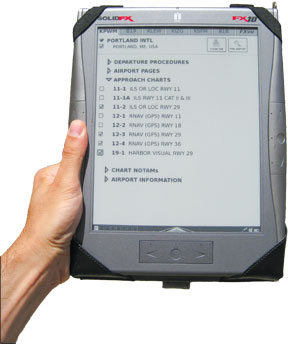
Elegant Interface
Once you have the FXview running, selecting and organizing charts is about as self-explanatory as possible. There are seven tabs across the top of the screen. Each tab can hold the charts for one airport, except the right-most tab, which is a clipboard. More on that in a moment.
To load an airport, you tap a large “Find Airport” icon. You can tap in the ICAO identifier or any part of the airport name or town name. The FX10 narrows down the list as you type. The display is slow to update, but you don’t have to wait after tapping each letter. Tap out the whole string at full speed and wait about two seconds, and the FX10 will catch up and show the results.
Once youve loaded an airport, you can check its name to make it a favorite. The list of favorites also appears on the search page for faster access.
Beneath the airport name are groups of procedures: departures, arrivals, airport pages and approaches. Tap the approaches and you’ll see all the approaches for that airport. Tap the approach you want and the plate loads full-screen. Tap the plate and you go back to the list of approaches.
Next to each procedure is a checkbox that will put that specific plate on the clipboard. So the standard drill might be to load your departure, destination, and useful alternates or optional fuel stops as airports into the tabs before flight. During the trip you can check just the departures or approaches you’ll need, and only those approaches appear on the clipboard for even quicker access.
The charts appear on the FX10 only slightly smaller than the paper Jepps and we never bothered zooming in. That said, the FX10 has the best, simplest zoom function weve seen. Use the stylus to circle or otherwise bracket the part of the chart you want to see close up, and its redrawn to show that area of the chart (after about a three-second delay). Panning is done by drawing a quick line that sets both the distance and the direction you pan, although you must make this line quite straight or the unit will zoom instead. To zoom back to full screen, tap